OMNI-1 Project Management Solution

Setup Installation Guide

Local Deployment Setup

Run the application on your computer (~30–50 min)

Complete Part 1 first. Your app must run locally at http://localhost:3000 before deploying to AWS.

This guide helps you run the product on your own computer only. When finished, you will use the app at http://localhost:3000, complete the setup wizard once, and sign in as administrator.

ItemValue
App addresshttp://localhost:3000
Setup wizard (first time)http://localhost:3000/install
Sign-in pagehttp://localhost:3000/sign-in
Skills neededCopy and paste only - no programming
InternetRequired for packages and Supabase database

1. Prerequisites

Install the required tools before opening the project.

ToolRequiredPurpose
Chrome or Microsoft EdgeYesBrowser for app and setup wizard
Node.js 20 or newerYesRuns the application
pnpm 10 or newerYesInstalls project packages
Terminal / PowerShellYesRun setup commands
Visual Studio CodeRecommendedOpen project and built-in terminal
Application ZIP + LICENSE.txtYesSource code and license keys
Supabase account (free)YesPostgreSQL database in the cloud
AWS S3OptionalFile uploads - can skip in wizard
Email (Postmark or SMTP)OptionalCan skip for local testing

2. Install Required Software

2.1 Web browser

  • Install Google Chrome from https://www.google.com/chrome/ or use Microsoft Edge (included on Windows 11).
  • Use a normal browser window during setup (avoid strict private/incognito mode).

2.2 Install Node.js (20+)

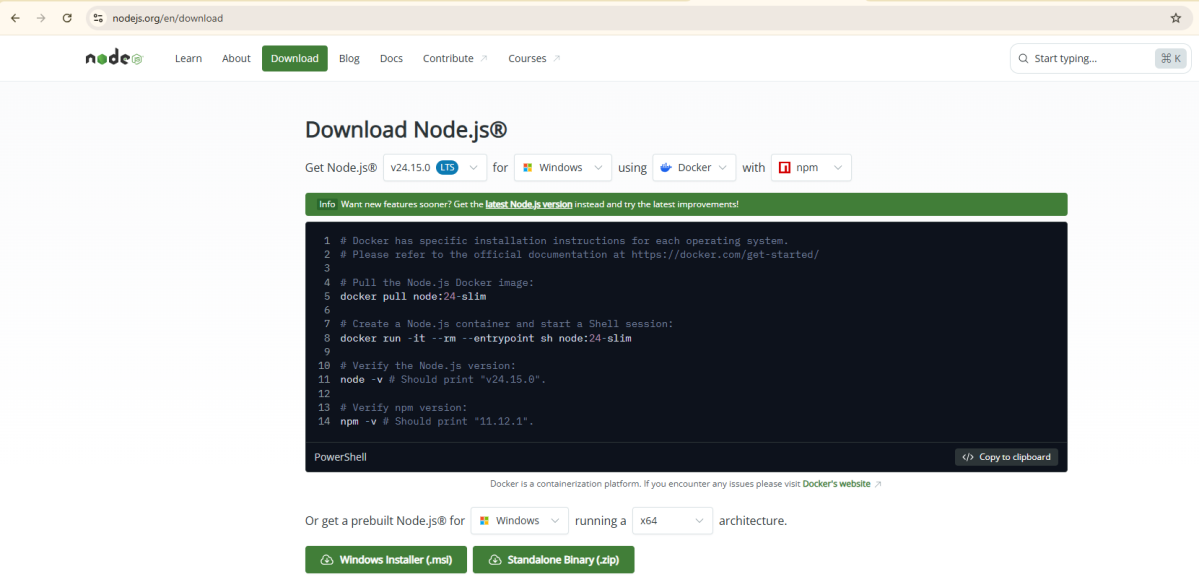
  1. Open https://nodejs.org
  2. Download the LTS version (20.x or newer).
  3. Run the installer and accept default options.
  4. Close and reopen PowerShell or VS Code terminal.

Verify installation:

Verify
node -v
Node.js download page on nodejs.org
Download the LTS installer from nodejs.org (version 20 or newer).

Expected result: v20.x.x or higher (example: v20.18.0)

2.3 pnpm

Install pnpm after Node.js:

Install
npm install -g pnpm

Verify:

Verify
pnpm -v

Expected result: Version 10 or higher (example: 10.7.1)

2.4 Terminal (Command Prompt / Terminal)

SystemHow to open
WindowsPress Win + X → Terminal or PowerShell
MacCmd + Space → type Terminal → Enter
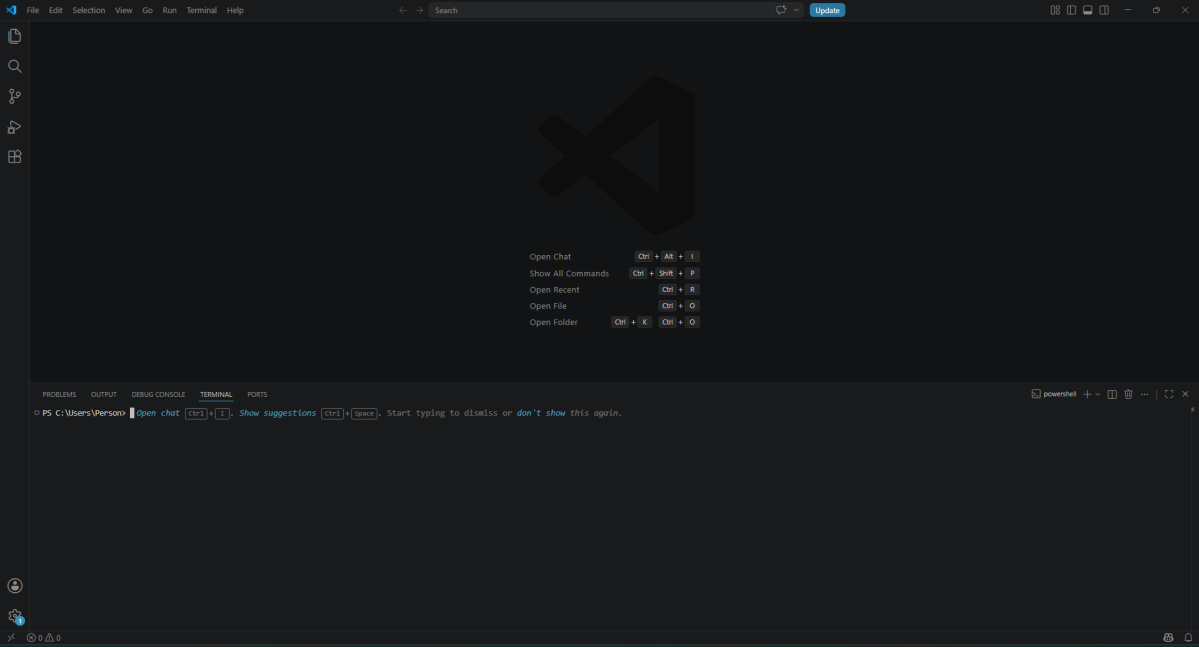
VS CodeMenu: Terminal → New Terminal (recommended)
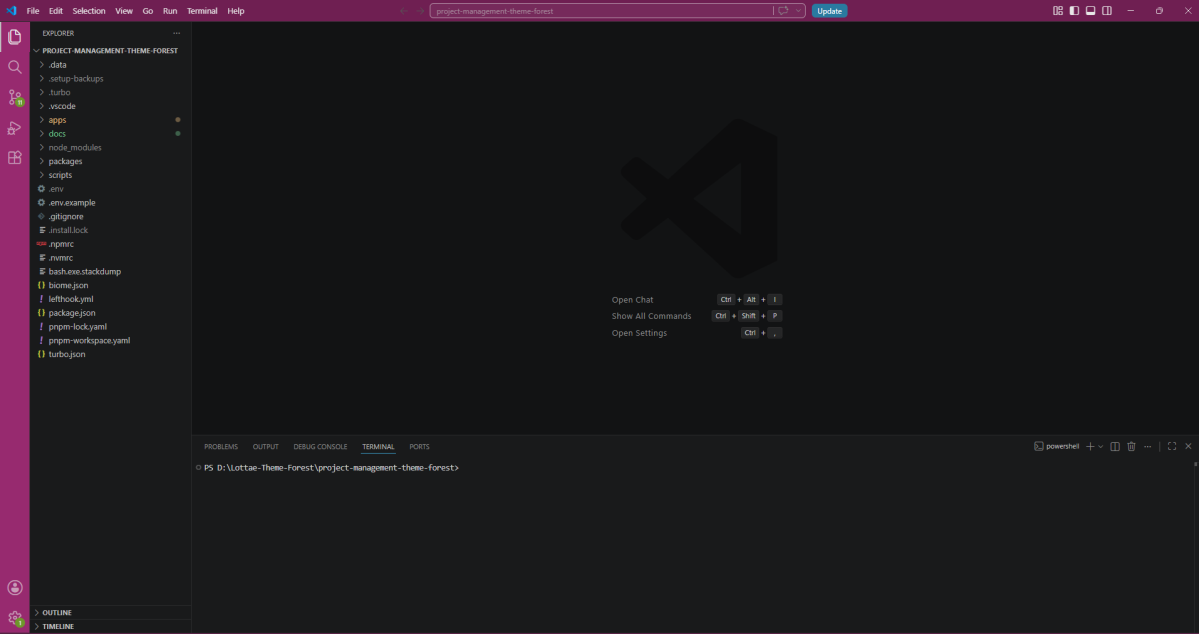
VS Code with integrated PowerShell terminal
Use the VS Code integrated terminal to run setup commands.

2.5 Visual Studio Code

  1. Download from https://code.visualstudio.com
  2. Install with default settings.
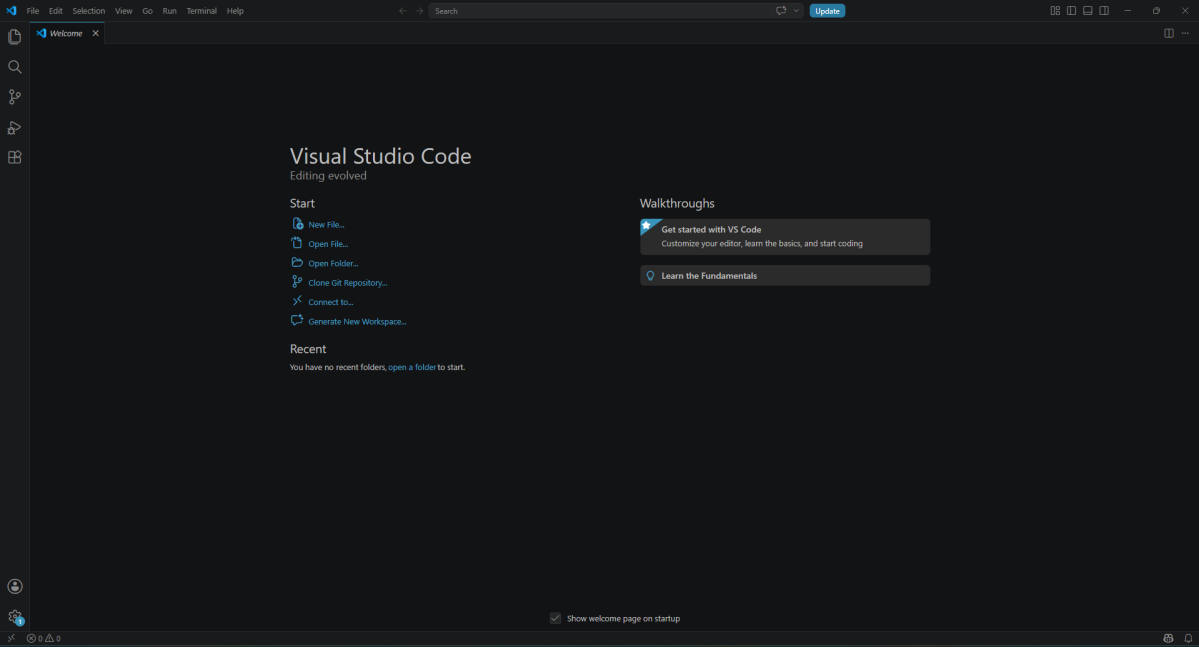
  3. Open VS Code → File → Open Folder → select your project folder.
VS Code welcome screen with Open Folder option
VS Code welcome screen - use Open Folder to select your project.

Optional extensions

ExtensionPurpose
PrismaView database schema files
DotENVEasier reading of .env file

3. Configure Supabase Database

Your computer runs the app. Data is stored in PostgreSQL on Supabase (free tier).
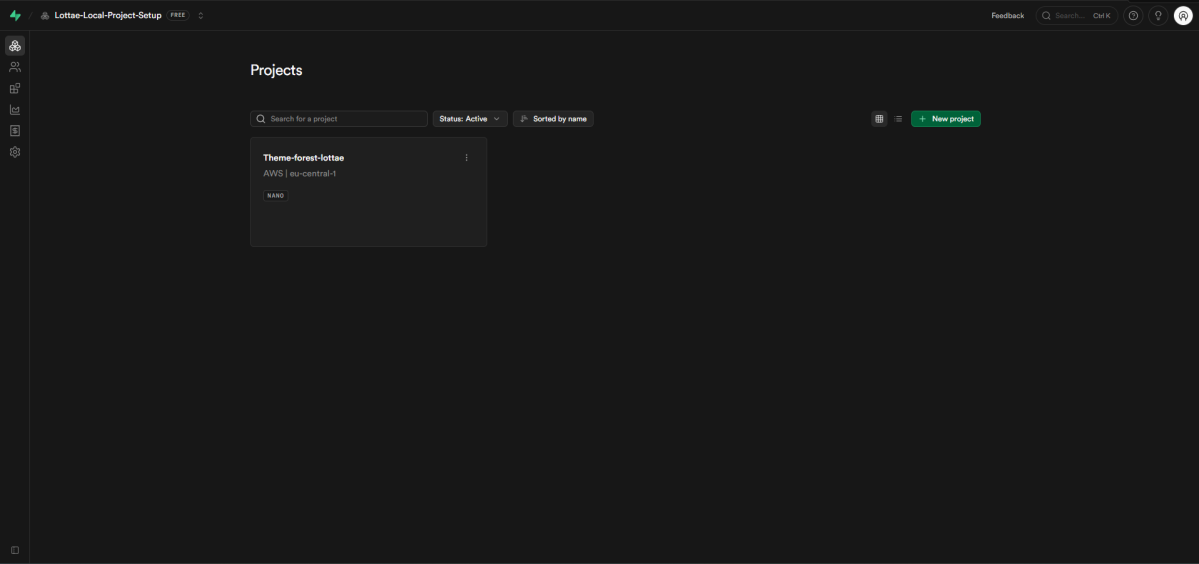
3.1 Create a Supabase project

  1. Go to https://supabase.com and sign up.
  2. Click New project.
  3. Set project name (example: project-local).
  4. Set a strong database password and save it securely.
  5. Choose the region closest to you.
  6. Click Create new project and wait until status is Active.
Supabase dashboard showing a new project
Create a new Supabase project and wait until status is Active.

3.2 Copy connection strings

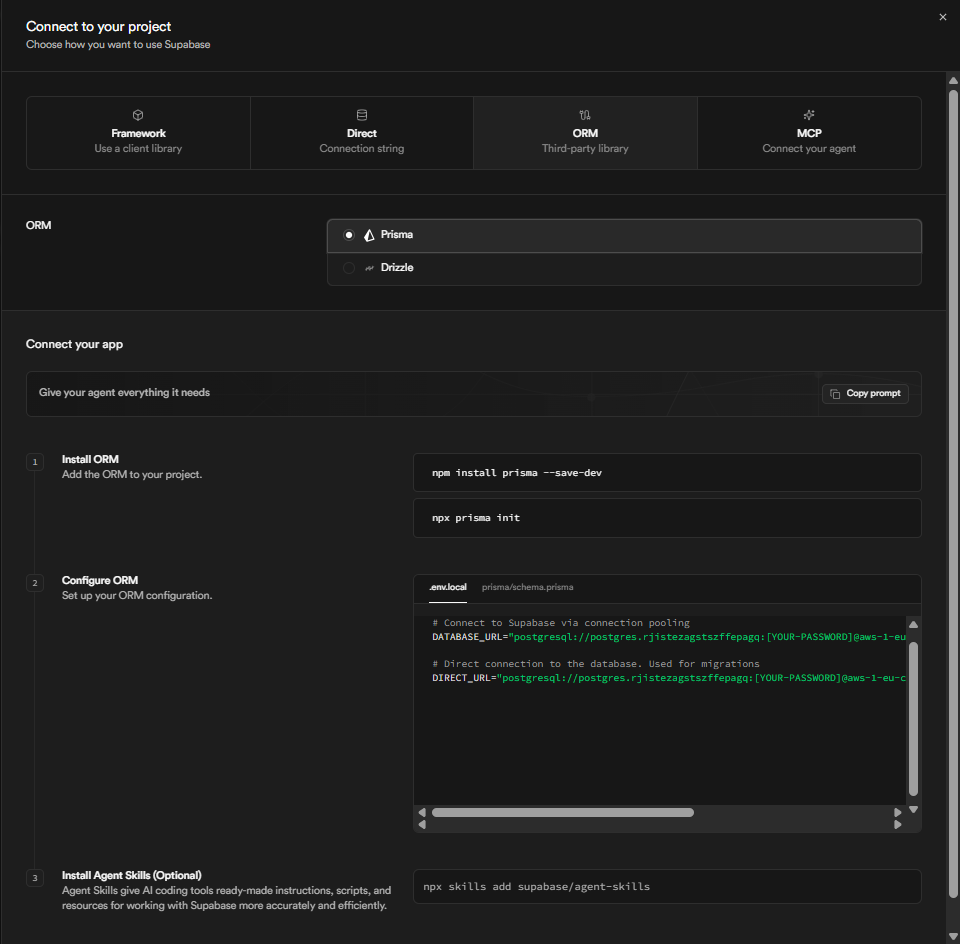
  1. In Supabase: Project Settings (gear) → Database.
  2. Under Connection string, select URI.
  3. Copy two URLs (replace [YOUR-PASSWORD] with your real password).
Wizard fieldSupabase sourcePort
Database URLConnection pooling → Transaction mode6543 (pooler)
Direct Database URLDirect connection or Session pooler5432
Supabase connection strings for DATABASE_URL and DIRECT_DATABASE_URL
Copy pooler URL (port 6543) and direct URL (port 5432) from Supabase → Project Settings → Database.

4. Download and Extract Project Files

4.1 Download from ThemeForest

  1. Log in to ThemeForest → Downloads.
  2. Download the main ZIP file for this item.
  3. Download bundle files that include LICENSE.txt.

4.2 Extract ZIP

  • Windows: Right-click ZIP → Extract All → choose Documents\Project-Management
  • Mac: Double-click ZIP → move folder to Documents

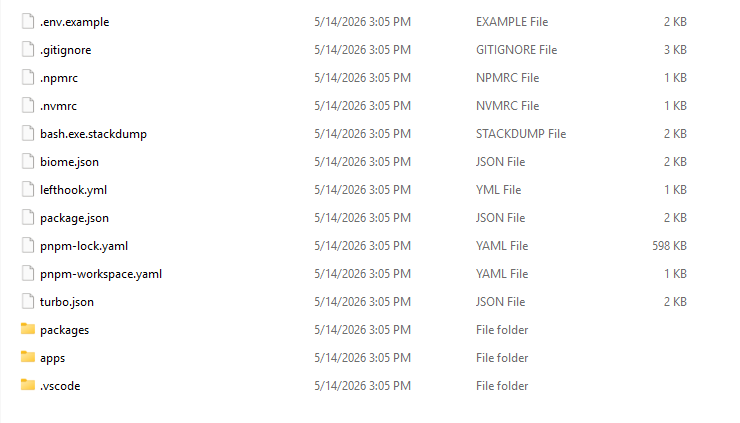
Correct folder must contain at the top level: package.json, pnpm-workspace.yaml, apps folder, and packages folder.
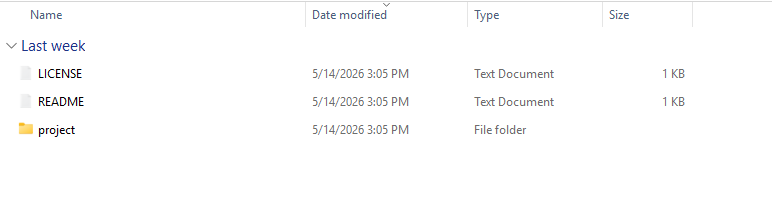
Extracted bundle folder containing LICENSE and project folder
ThemeForest bundle folder - locate LICENSE.txt and the project folder.
Project root showing package.json, apps, and packages folders
Correct project root must include package.json, pnpm-workspace.yaml, apps, and packages.

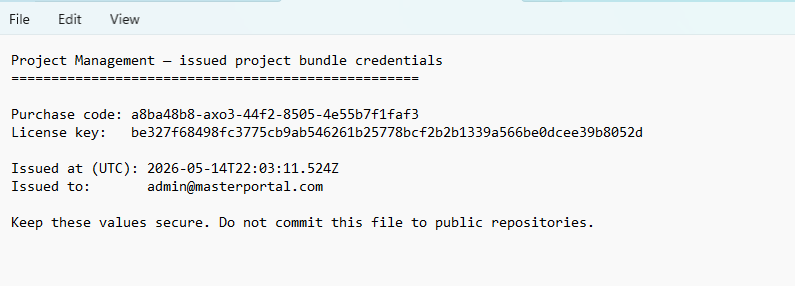
4.3 LICENSE.txt

  • Open LICENSE.txt from your bundle.
  • Copy the Purchase code (UUID format).
  • Copy the License key (64 characters).
  • Keep both ready for the setup wizard.
LICENSE.txt file showing purchase code and license key
Copy the Purchase code and License key from LICENSE.txt for the setup wizard.

5. Open the Project in VS Code

  1. Open VS Code.
  2. File → Open Folder.
  3. Select the folder that contains package.json.
  4. If prompted to trust authors, click Yes, I trust the authors.
  5. Terminal → New Terminal.
  6. Confirm the terminal path shows your project folder.
VS Code Explorer showing the monorepo project structure
Open the folder that contains package.json in VS Code Explorer.

6. Run the Application Locally

6.1 Install packages (first run only)

In the VS Code terminal, run:

Install
pnpm install
DetailValue
What it doesDownloads all required packages (3–10 minutes)
SuccessFinishes without red ERROR lines

6.2 Start the development server

Start
pnpm dev
DetailValue
What it doesStarts the app on your computer
SuccessTerminal shows Ready and localhost:3000
ImportantKeep this terminal open while using the app
  1. Open Chrome or Edge.
  2. Go to http://localhost:3000
  3. You should be redirected to http://localhost:3000/install

Stop server: Press Ctrl + C in the terminal when finished.

7. Complete the Installation Wizard

Complete all steps in one browser tab. Do not clear browser data until finished.
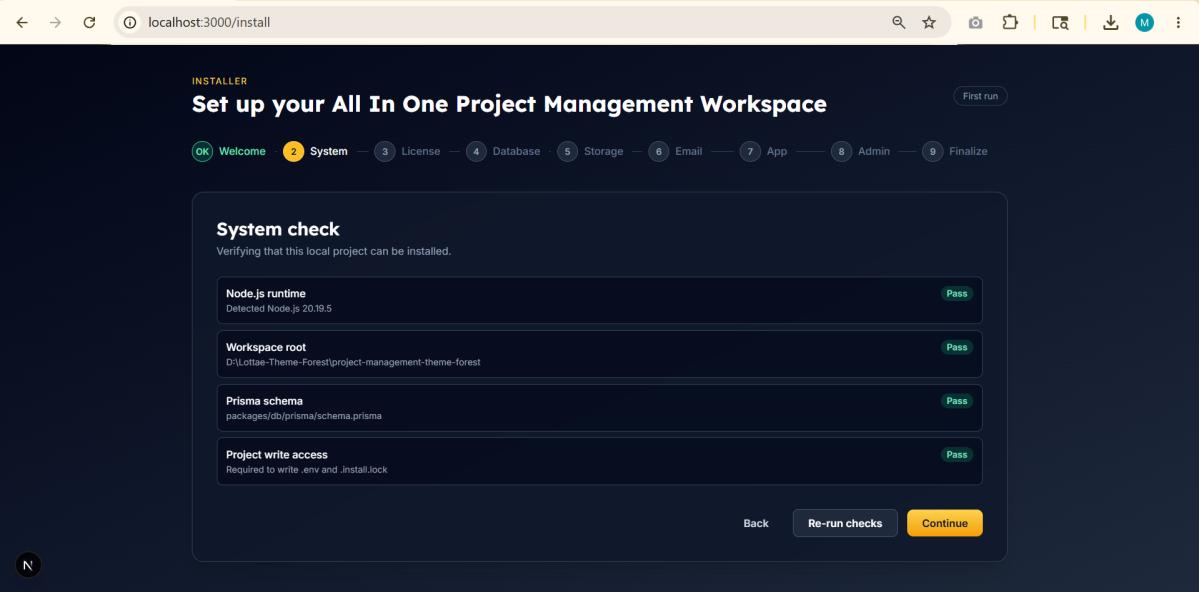
Setup wizard system check step with all checks passing
Step 2 - System requirements: all items must show Pass before continuing.
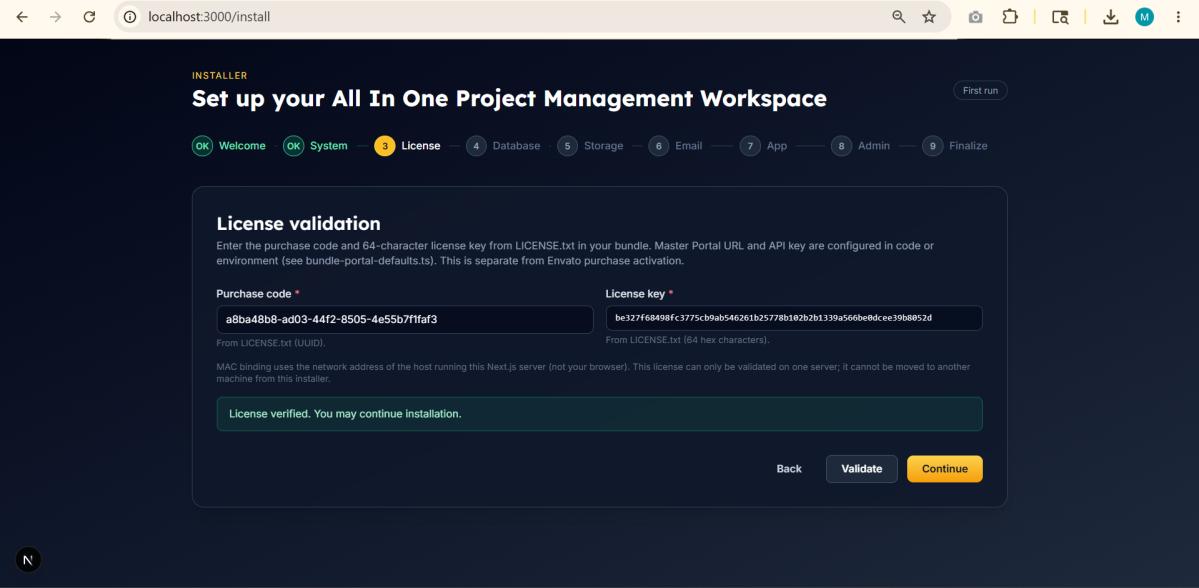
Setup wizard license validation step
Step 3 - License: paste Purchase code and License key, then click Validate.
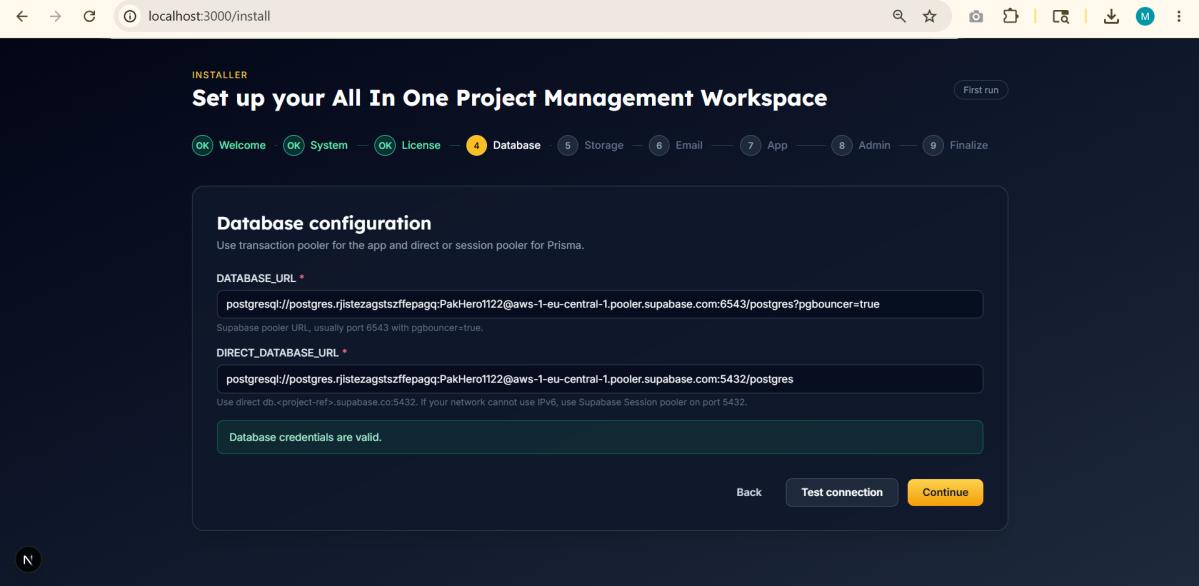
Setup wizard database configuration step
Step 4 - Database: paste pooler and direct URLs, then Test connection.
1

Welcome

  • Click Start installation.
  • Expected: moves to System check.
2

System requirements

All items must show Pass:

  • Node.js runtime (20+)
  • Workspace root
  • Prisma schema
  • Project write access
If failedFix
Node.jsInstall Node 20+, restart terminal, Re-run checks
Write accessMove project to Documents folder, not Program Files
3

License

  • Paste Purchase code from LICENSE.txt.
  • Paste License key (64 characters).
  • Click Validate.
  • Continue when validation succeeds.
4

Database

  • Paste Database URL (Supabase pooler, port 6543).
  • Paste Direct Database URL (port 5432).
  • Click Test connection.
  • Continue when test passes.
5

Storage (optional)

  • Skip for local testing, or enter AWS S3 credentials if you have them.
  • Click Continue.
6

Email (optional)

  • Skip for local testing, or configure Postmark/SMTP to test emails.
  • Click Continue.
7

App settings

  • Optional: Enable Import demo data for sample projects and tasks.
FieldLocal value
Application URLhttp://localhost:3000
Public App URLhttp://localhost:3000
Base URLhttp://localhost:3000
8

Admin account

There is no default password. Create your own administrator:

FieldRequirement
Admin emailValid email address
Display nameAt least 2 characters
PasswordAt least 8 characters
Confirm passwordMust match password
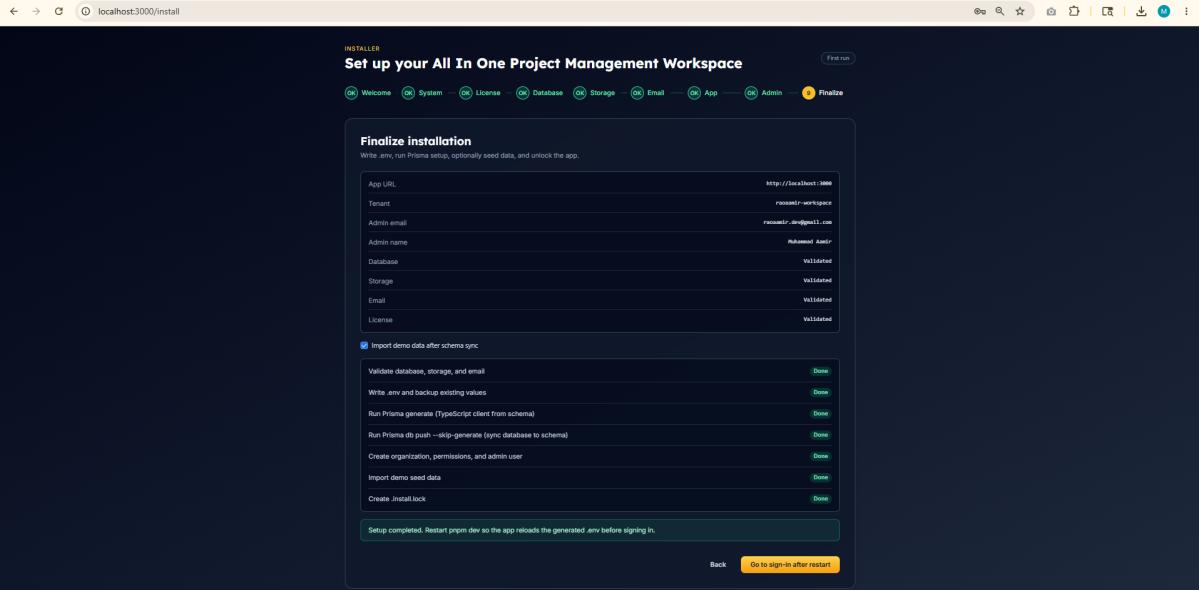
9

Finalize

  • Review the summary.
  • Click Install or Complete setup.
  • Wait until every stage shows Done.
  • Validate services
  • Write .env file
  • Prisma generate and database sync
  • Create organization and admin user
  • Create .install.lock file
Setup wizard finalize step showing all stages complete
Finalize: wait until every stage shows Done.

Verify in project root: .env and .install.lock files exist.
8. Sign In and Verify

  1. Open http://localhost:3000/sign-in
  2. Enter admin email and password from Step 8.
  3. Click Sign in.

Verification checklist

  • Website opens at http://localhost:3000
  • Admin login works
  • No database errors on screen
  • License was validated in wizard
  • Setup wizard is locked (install completed)
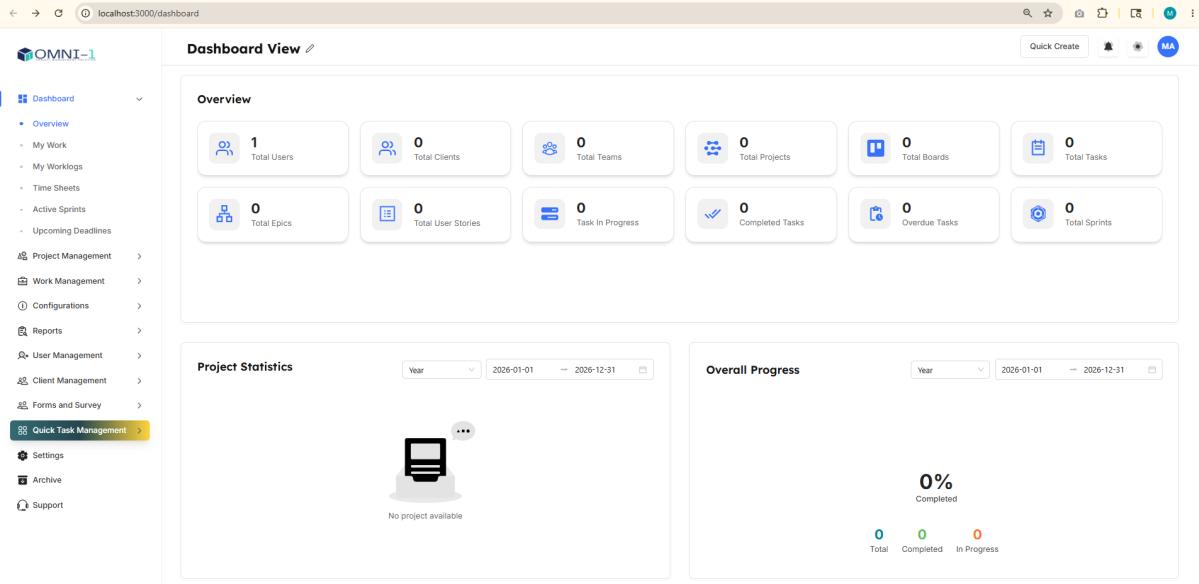
Application dashboard after successful sign-in
After sign-in, the dashboard should load without database errors.

Daily workflow

  1. Open VS Code → open project folder.
  2. Run: pnpm dev
  3. Open browser: http://localhost:3000
  4. Stop server: Ctrl + C in terminal

9. Troubleshooting

Node is not recognized

Cause: Node.js not installed or terminal not restarted.

  • Solution: Install Node 20+, close VS Code, reopen, run node -v.

Pnpm is not recognized

Cause: pnpm not installed globally.

  • Solution: Run: npm install -g pnpm (Administrator PowerShell on Windows).

Port 3000 already in use

Cause: Previous dev server still running.

  • Solution: Close old terminal or end process on port 3000, then run pnpm dev again.

Database connection failed

Cause: Wrong URL, paused Supabase, or swapped pooler/direct URLs.

  • Solution: Use 6543 for Database URL and 5432 for Direct URL; confirm project is Active.

License validation failed

Cause: Wrong code/key or license used on another machine.

  • Solution: Re-copy from LICENSE.txt; contact support for license reset if needed.

Cannot write .env

Cause: Project in protected folder.

  • Solution: Move project to Documents and reopen in VS Code.

10. Quick Reference (Local)

ActionCommand or URL
Open projectVS Code → File → Open Folder
Install packagespnpm install
Start apppnpm dev
Open in browserhttp://localhost:3000
Sign inhttp://localhost:3000/sign-in
Stop appCtrl + C in terminal